
What Is Android Credential Manager?
Android Credential Manager is the new unified authentication framework that replaces the aging SmartLock and Autofill APIs. If you’ve been relying on those legacy systems, now’s the time to migrate. Credential Manager gives your users a modern, secure way to authenticate — and it’s simpler for you to implement than you might think.
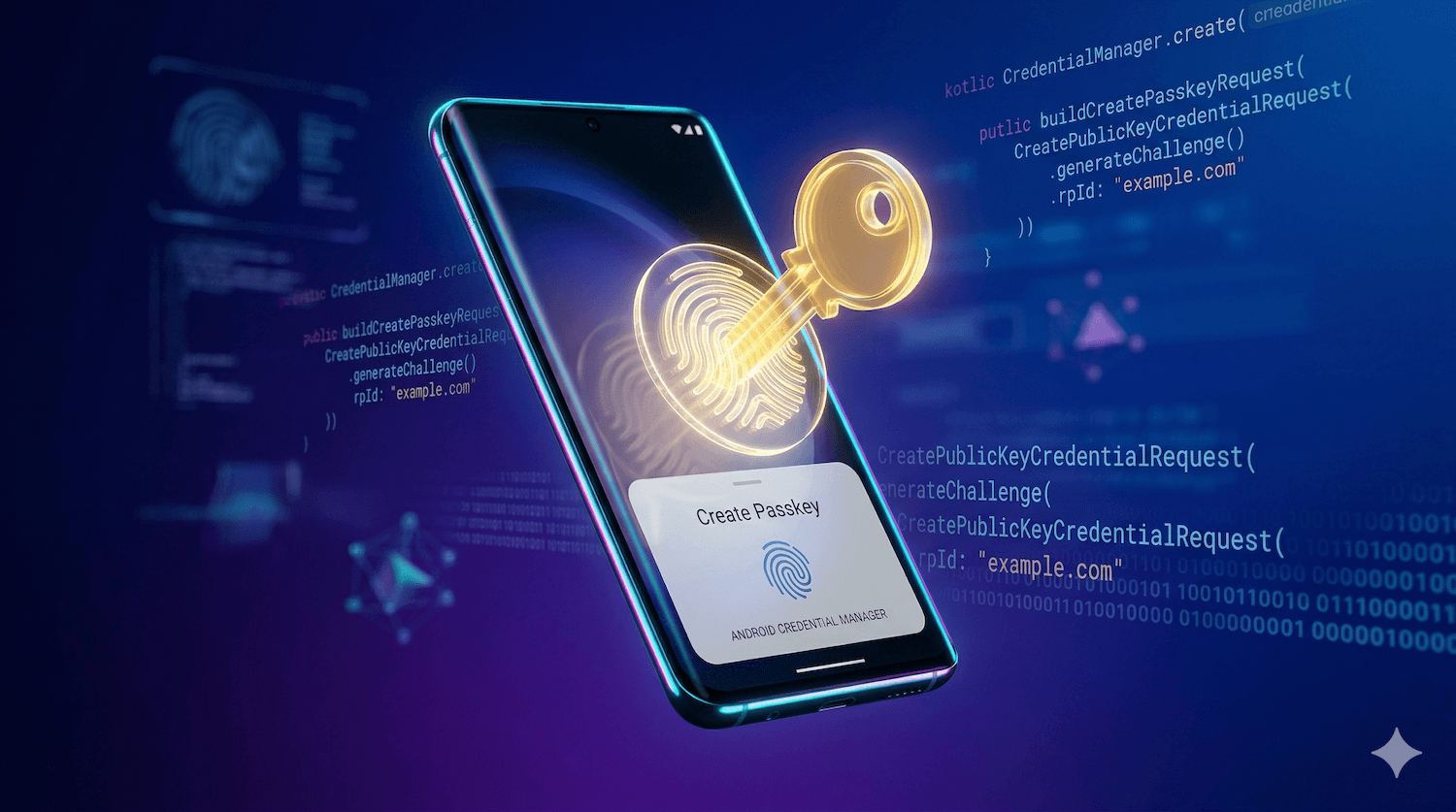
Here’s the core idea: instead of juggling passwords, recovering accounts, or typing credentials over and over, users can sign in with passkeys. A passkey is a cryptographic key pair stored securely on their device (or synced across devices via their platform’s credential sync service). No passwords. No phishing. Just one tap to authenticate.
Why Passwords Are Dead (And Passkeys Are the Future)
Passwords are broken. They’re broken because humans are bad at creating them, bad at remembering them, and terrible at reusing them securely. Password breaches happen regularly. Phishing works because users will enter their password anywhere if the form looks convincing enough.
Passkeys solve this in one elegant stroke: authentication is cryptographic, not based on a shared secret that can be stolen. When you sign in with a passkey, your device proves it has the private key without ever sending the key itself to the server. The server verifies the proof and grants access. No password to leak. No phishing attack that works.
The passkeys.dev initiative and the FIDO Alliance have been pushing this standard for years. Android’s Credential Manager is Google’s commitment to making passkeys the default authentication method.
Credential Manager vs. SmartLock and Autofill
You might already be using SmartLock or the Autofill Framework on your app. Here’s why you need to switch:
- SmartLock was a basic, dated system for saving and retrieving passwords. It’s been deprecated and Google is actively sunsetting it.
- Autofill Framework works with Android’s built-in password manager, but it doesn’t handle passkeys natively.
- Credential Manager unifies passwords and passkeys under one API, and it integrates with system credential providers (Google Password Manager, 1Password, Dashlane, etc.).
Credential Manager is more flexible, more secure, and it’s the direction Google is investing in. If you’re not already using it, this is your migration moment.
Setting Up the Credential Manager Dependency
Let’s get hands-on. First, add the dependency to your build.gradle.kts file:
dependencies {
    implementation "androidx.credentials:credentials:1.2.0"
    implementation "androidx.credentials:credentials-play-services-auth:1.2.0"
}
The second dependency gives you Google Play Services support for older Android versions. Credential Manager itself is available on Android 9+, but for a smooth experience across a wide range of devices, include both.
Then, make sure your Android manifest includes the necessary permissions:
Creating a Passkey on Android
Now, let’s implement passkey creation. When a user signs up for your app, you’ll prompt them to create a passkey:
import androidx.credentials.CreateCredentialRequest
import androidx.credentials.CreatePublicKeyCredentialRequest
import androidx.credentials.CredentialManager

suspend fun createPasskey(
    context: Context,
    userId: String,
    userName: String,
    displayName: String
) {
    val credentialManager = CredentialManager.create(context)

    val createRequest = CreatePublicKeyCredentialRequest(
        requestJson = buildCreatePasskeyRequest(userId, userName, displayName)
    )

    try {
        val result = credentialManager.createCredential(
            context = context,
            request = createRequest
        )
        // Send the attestation response to your server
        sendToServer(result.registrationResponseJson)
    } catch (e: CreateCredentialException) {
        Log.e("Passkey", "Failed to create passkey: ${e.message}")
    }
}
The requestJson parameter is a WebAuthn PublicKeyCredentialCreationOptions object, formatted as JSON. Your server generates this and sends it to your app. Here’s a minimal example:
{
  "challenge": "base64-encoded-random-bytes",
  "rp": {
    "name": "My App",
    "id": "example.com"
  },
  "user": {
    "id": "base64-user-id",
    "name": "user@example.com",
    "displayName": "John Doe"
  },
  "pubKeyCredParams": [
    { "alg": -7, "type": "public-key" }
  ],
  "timeout": 60000,
  "attestation": "direct"
}
Your server sets the challenge (a random value) to prevent replay attacks. The rp (relying party) object identifies your service. The user object contains the user’s identifier, username, and display name. When the user taps to create the passkey, Android prompts them to use their biometric or PIN, then returns a signed attestation response. Send that to your server, verify the signature, and store the public key.
Signing In with a Passkey
Authentication is the mirror image. When a user wants to sign in, you request a credential:
import androidx.credentials.GetCredentialRequest
import androidx.credentials.GetPublicKeyCredentialOption
import androidx.credentials.PublicKeyCredential

suspend fun signInWithPasskey(context: Context) {
    val credentialManager = CredentialManager.create(context)

    val getRequest = GetPublicKeyCredentialOption(
        requestJson = buildSignInRequest(
            challenge = generateChallenge(),
            rpId = "example.com"
        )
    )

    try {
        val result = credentialManager.getCredential(
            context = context,
            request = GetCredentialRequest(listOf(getRequest))
        )

        val publicKeyCredential = result.credential as? PublicKeyCredential
        publicKeyCredential?.let {
            // Send the assertion response to your server
            sendToServer(it.authenticationResponseJson)
        }
    } catch (e: GetCredentialException) {
        Log.e("Passkey", "Sign-in failed: ${e.message}")
    }
}
The server generates a PublicKeyCredentialRequestOptions JSON with a new challenge and the RP ID. Android prompts the user to verify with their biometric or PIN, then returns a signed assertion. The server verifies the assertion using the stored public key, and the user is authenticated.
Handling Fallback to Passwords
Not every user will have set up a passkey yet. You need to handle the graceful fallback to password-based authentication:
import androidx.credentials.GetPasswordOption

suspend fun signIn(context: Context) {
    val credentialManager = CredentialManager.create(context)

    val passkeyOption = GetPublicKeyCredentialOption(
        requestJson = buildSignInRequest(...)
    )

    val passwordOption = GetPasswordOption()

    try {
        val result = credentialManager.getCredential(
            context = context,
            request = GetCredentialRequest(listOf(passkeyOption, passwordOption))
        )

        when (val credential = result.credential) {
            is PublicKeyCredential -> {
                // Handle passkey sign-in
                sendToServer(credential.authenticationResponseJson)
            }
            is PasswordCredential -> {
                // Handle password sign-in
                authenticateWithPassword(credential.id, credential.password)
            }
        }
    } catch (e: GetCredentialException) {
        // No credentials available
        showManualLoginForm()
    }
}
By including both GetPublicKeyCredentialOption and GetPasswordOption, you let Credential Manager surface whatever credentials the user has available. If they have a passkey, it’s offered first. If not, the password manager kicks in. If they have neither, you fall back to a manual login form.
UX Best Practices for Passkeys
Technical implementation is only half the battle. Here are the UX patterns that make passkeys feel natural to your users:
- Offer passkey creation after signup. Don’t force it immediately. Let users complete their account setup, then prompt them to create a passkey as a security upgrade. A modal or in-app notification works well.
- Make the passkey prompt optional on first login. Some users won’t have devices that support passkeys. Show the prompt, but don’t block them if they decline.
- Explain what a passkey is. The term “passkey” is still new to many users. A brief, jargon-free explanation helps: “A passkey is a secure way to sign in using your fingerprint or face, instead of a password.”
- Show success feedback. After a passkey is created or used, confirm it with a brief toast or animation. Users should feel confident their authentication worked.
- Handle errors gracefully. If passkey creation fails (e.g., user cancels the biometric prompt), don’t leave them stranded. Offer an alternative path back to the signup form or password creation.
Practical Migration Guide
If you’re migrating from SmartLock or the Autofill Framework, here’s your roadmap:
- Add the Credential Manager dependency and verify it compiles.
- Design your server-side WebAuthn support. You’ll need endpoints to generate challenges and verify assertions. Libraries like py_webauthn (Python) or java-webauthn (Java) can help.
- Update your signup flow to offer passkey creation using CreatePublicKeyCredentialRequest.
- Update your signin flow to request credentials with both passkey and password options.
- Test thoroughly on real devices with biometric sensors (or use emulator shortcuts for testing).
- Monitor adoption. Track how many users create passkeys vs. sticking with passwords. Adjust your UX prompts based on real data.
- Deprecate SmartLock gradually. Don’t remove it immediately. Run both systems in parallel for a few releases, then phase out the old API.
The official Credential Manager documentation has complete code samples and integration guides. Read it alongside this post for the full picture.
Advanced: Storing Passkey State
If you need to persist credential manager state across app restarts — for example, remembering which provider a user chose last time — you can leverage Android’s encrypted shared preferences alongside your Credential Manager integration. For more patterns around state persistence and lifecycle management, the ViewModel and SavedStateHandle pattern for handling process death follows the same principles — that same approach applies here if you’re building a sophisticated credential picker UI.
The Future Is Frictionless
Passkeys represent a fundamental shift in how mobile authentication works. They’re more secure than passwords, easier for users, and simpler for developers (once you invest in the initial setup). Android’s Credential Manager makes this future accessible to every app.
Start small: add passkey creation to your signup flow, then add passkey sign-in. Leave password fallback in place for users who aren’t ready. Monitor adoption, iterate on the UX, and soon you’ll see the benefits: fewer support tickets for forgotten passwords, happier users who appreciate the frictionless experience, and a security posture that’s quantifiably better than password-based auth.
The industry is moving this direction. iOS has iCloud Keychain passkeys. Windows has Windows Hello. The question isn’t whether passkeys will take over — it’s whether your app is ready for them. Start today.
This post was written by a human with the help of Claude, an AI assistant by Anthropic.