
In this tutorial we will see how to add tabs to a project by using TabLayout together with ViewPager, and some other new views from the design library :)
Before starting I will make summary to present the main idea of creating the tabs.
- xml
- in the xml file, because we use TabLayout together with a scrollable view, it is recommended to use CoordinatorLayout as root view
- Toolbar and TabLayout should live inside an AppBarLayout
- ViewPager should live outside the AppBarLayout
- java class
- add this method setSupportActionBar(toolbar); in order to use the Toolbar
- create an adapter for ViewPager and setup the ViewPager
- in order to setup the tabs, we use only 1 method:
- setupWithViewPager(viewPager);
Now let’s see the code!
1. build.gradle (Updated)
We have to add to the build.gradle file the dependency for the design support library.
apply plugin: 'com.android.application'

android {
    compileSdkVersion 23
    buildToolsVersion "22.0.1"

    defaultConfig {
        applicationId "com.example.tabstutorial"
        minSdkVersion 14
        targetSdkVersion 23
        versionCode 1
        versionName "1.0"
    }
    buildTypes {
        release {
            minifyEnabled false
            proguardFiles getDefaultProguardFile('proguard-android.txt'), 'proguard-rules.pro'
        }
    }
}

dependencies {
    compile fileTree(dir: 'libs', include: ['*.jar'])
    compile 'com.android.support:appcompat-v7:23.4.0'
    compile 'com.android.support:design:23.4.0'
}
2. Change Theme to “Theme.AppCompat.Light.NoActionBar”
In order to change the theme, go to app – src – main – res – values – styles and change the default theme “Theme.AppCompat.Light.DarkActionBar” to “Theme.AppCompat.Light.NoActionBar”.
<resources>

    <!-- Base application theme. -->
    <style name="AppTheme" parent="Theme.AppCompat.Light.NoActionBar">
        <!-- Customize your theme here. -->

    </style>

</resources>
This step is needed because we will use Toolbar which replaces the action bar.
3. activity_main.xml file
<android.support.design.widget.CoordinatorLayout xmlns:android="http://schemas.android.com/apk/res/android"
    xmlns:app="http://schemas.android.com/apk/res-auto"
    android:layout_width="match_parent"
    android:layout_height="match_parent">

    <android.support.design.widget.AppBarLayout
        android:layout_width="match_parent"
        android:layout_height="wrap_content">

        <android.support.v7.widget.Toolbar
            android:id="@+id/toolbar"
            android:layout_width="match_parent"
            android:layout_height="wrap_content"
            app:layout_scrollFlags="scroll|enterAlways" />

        <android.support.design.widget.TabLayout
            android:id="@+id/tab_layout"
            android:layout_width="match_parent"
            android:layout_height="wrap_content"
            app:tabMode="scrollable"
            app:layout_scrollFlags="scroll|enterAlways" />

    </android.support.design.widget.AppBarLayout>

    <!-- Scrollable View -->
    <android.support.v4.view.ViewPager
        android:id="@+id/view_pager"
        android:layout_width="match_parent"
        android:layout_height="match_parent"
        app:layout_behavior="@string/appbar_scrolling_view_behavior" />

</android.support.design.widget.CoordinatorLayout>
We will get back to this code later to explain more about the new types of views.
4. fragment_fragment1.xml (Updated)
We will create 3 fragments which will represent each tab so we will have 3 tabs too :D So go to app – src – main – res – layout and create a new xml file named fragment_fragment1.xml.
<LinearLayout xmlns:android="http://schemas.android.com/apk/res/android"
    xmlns:tools="http://schemas.android.com/tools"
    android:layout_width="match_parent"
    android:layout_height="match_parent"
    android:orientation="vertical"
    tools:context="com.example.tabstutorial.Fragment1">

    <TextView
        android:layout_width="wrap_content"
        android:layout_height="wrap_content"
        android:layout_gravity="center"
        android:text="Hello Fragment 1!" />

    <Button
        android:id="@+id/button_add_tab"
        android:layout_width="match_parent"
        android:layout_height="wrap_content"
        android:text="Add Tab"/>

    <Button
        android:id="@+id/button_remove_tab"
        android:layout_width="match_parent"
        android:layout_height="wrap_content"
        android:text="Remove Tab"/>

</LinearLayout>
5. fragment_fragment2.xml
<FrameLayout xmlns:android="http://schemas.android.com/apk/res/android"
    xmlns:tools="http://schemas.android.com/tools"
    android:layout_width="match_parent"
    android:layout_height="match_parent"
    tools:context="com.example.tabstutorial.Fragment2">

    <TextView
        android:layout_width="wrap_content"
        android:layout_height="wrap_content"
        android:layout_gravity="center"
        android:text="Hello Fragment 2!" />

</FrameLayout>
6. fragment_fragment3.xml
<FrameLayout xmlns:android="http://schemas.android.com/apk/res/android"
    xmlns:tools="http://schemas.android.com/tools"
    android:layout_width="match_parent"
    android:layout_height="match_parent"
    tools:context="com.example.tabstutorial.Fragment3">

    <TextView
        android:layout_width="wrap_content"
        android:layout_height="wrap_content"
        android:layout_gravity="center"
        android:text="Hello Fragment 3!" />

</FrameLayout>
7. TabsListener.java interface (New)
package com.example.tabstutorial;

public interface TabsListener {
    void onTabAdded();
    void onTabRemoved();
}
8. Fragment1.java (Updated)
Now go to app – src – main – java and create a new fragment class named Fragment1.java.
package com.example.tabstutorial;

import android.app.Activity;
import android.os.Bundle;
import android.support.v4.app.Fragment;
import android.view.LayoutInflater;
import android.view.View;
import android.view.ViewGroup;
import android.widget.Button;


public class Fragment1 extends Fragment {
    private TabsListener tabsListener;
    /**
     * Use this factory method to create a new instance of
     * this fragment using the provided parameters.
     *
     * @return A new instance of fragment Fragment1.
     */
    public static Fragment1 newInstance() {
        return new Fragment1();
    }

    public Fragment1() {
        // Required empty public constructor
    }

    @Override
    public void onAttach(Activity activity) {
        super.onAttach(activity);

        if (activity instanceof TabsListener) {
            tabsListener = (TabsListener) activity;
        }
    }

    @Override
    public void onCreate(Bundle savedInstanceState) {
        super.onCreate(savedInstanceState);
    }

    @Override
    public View onCreateView(LayoutInflater inflater, ViewGroup container,
                             Bundle savedInstanceState) {
        // Inflate the layout for this fragment
        View view = inflater.inflate(R.layout.fragment_fragment1, container, false);

        Button addTab = (Button) view.findViewById(R.id.button_add_tab);
        Button removeTab = (Button) view.findViewById(R.id.button_remove_tab);

        addTab.setOnClickListener(new View.OnClickListener() {
            @Override
            public void onClick(View v) {
                tabsListener.onTabAdded();
            }
        });

        removeTab.setOnClickListener(new View.OnClickListener() {
            @Override
            public void onClick(View v) {
                tabsListener.onTabRemoved();
            }
        });

        return view;
    }
}
8. Fragment2.java
package com.example.tabstutorial;

import android.os.Bundle;
import android.support.v4.app.Fragment;
import android.view.LayoutInflater;
import android.view.View;
import android.view.ViewGroup;

public class Fragment2 extends Fragment {

    /**
     * Use this factory method to create a new instance of
     * this fragment using the provided parameters.
     *
     * @return A new instance of fragment Fragment2.
     */
    public static Fragment2 newInstance() {
        return new Fragment2();
    }

    public Fragment2() {
        // Required empty public constructor
    }

    @Override
    public void onCreate(Bundle savedInstanceState) {
        super.onCreate(savedInstanceState);
    }

    @Override
    public View onCreateView(LayoutInflater inflater, ViewGroup container,
                             Bundle savedInstanceState) {
        // Inflate the layout for this fragment
        return inflater.inflate(R.layout.fragment_fragment2, container, false);
    }
}
9. Fragment3.java
package com.example.tabstutorial;

import android.os.Bundle;
import android.support.v4.app.Fragment;
import android.view.LayoutInflater;
import android.view.View;
import android.view.ViewGroup;

public class Fragment3 extends Fragment {

    /**
     * Use this factory method to create a new instance of
     * this fragment using the provided parameters.
      @return A new instance of fragment Fragment3.
     */
    public static Fragment3 newInstance() {
        return new Fragment3();
    }

    public Fragment3() {
        // Required empty public constructor
    }

    @Override
    public void onCreate(Bundle savedInstanceState) {
        super.onCreate(savedInstanceState);
    }

    @Override
    public View onCreateView(LayoutInflater inflater, ViewGroup container,
                             Bundle savedInstanceState) {
        // Inflate the layout for this fragment
        return inflater.inflate(R.layout.fragment_fragment3, container, false);
    }
}
10. MainActivity.java (Updated)
Now go to the MainActivity.java class and add the following code:
package com.example.tabstutorial;

import android.os.Bundle;
import android.support.design.widget.TabLayout;
import android.support.v4.app.Fragment;
import android.support.v4.app.FragmentManager;
import android.support.v4.app.FragmentStatePagerAdapter;
import android.support.v4.view.PagerAdapter;
import android.support.v4.view.ViewPager;
import android.support.v7.app.AppCompatActivity;
import android.support.v7.widget.Toolbar;

import java.util.ArrayList;
import java.util.List;

public class MainActivity extends AppCompatActivity implements TabsListener {
    private List<Fragment> fragmentList = new ArrayList<>();
    private List<String> tabTitles = new ArrayList<>();
    private MyPagerAdapter pagerAdapter;
    private TabLayout tabLayout;

    @Override
    protected void onCreate(Bundle savedInstanceState) {
        super.onCreate(savedInstanceState);
        setContentView(R.layout.activity_main);

        fragmentList.add(Fragment1.newInstance());
        fragmentList.add(Fragment2.newInstance());
        fragmentList.add(Fragment3.newInstance());

        tabTitles.add("Tab 1");
        tabTitles.add("Tab 2");
        tabTitles.add("Tab 3");

        // Set a toolbar which will replace the action bar.
        Toolbar toolbar = (Toolbar) findViewById(R.id.toolbar);
        setSupportActionBar(toolbar);

        // Setup the viewPager
        ViewPager viewPager = (ViewPager) findViewById(R.id.view_pager);
        pagerAdapter = new MyPagerAdapter(getSupportFragmentManager());
        viewPager.setAdapter(pagerAdapter);

        // Setup the Tabs
        tabLayout = (TabLayout) findViewById(R.id.tab_layout);
        // This method ensures that tab selection events update the ViewPager and page changes update the selected tab.
        tabLayout.setupWithViewPager(viewPager);
    }

    @Override
    public void onTabAdded() {
        pagerAdapter.addTab(Fragment1.newInstance(), "Tab " + (tabTitles.size() + 1));
    }

    @Override
    public void onTabRemoved() {
        pagerAdapter.removeTab(1);
    }

    private class MyPagerAdapter extends FragmentStatePagerAdapter {

        public MyPagerAdapter(FragmentManager fm) {
            super(fm);
        }

        @Override
        public Fragment getItem(int pos) {
           return fragmentList.get(pos);
        }

        @Override
        public int getCount() {
            return fragmentList.size();
        }

        // This is called when notifyDataSetChanged() is called. Without this, getItem() is not triggered
        @Override
        public int getItemPosition(Object object) {
            // refresh all fragments when data set changed
            return PagerAdapter.POSITION_NONE;
        }

        @Override
        public CharSequence getPageTitle(int position) {
            return tabTitles.get(position);
        }

        public void addTab(Fragment fragment, String tabTitle) {
            fragmentList.add(fragment);
            tabTitles.add(tabTitle);
            notifyDataSetChanged();
        }

        public void removeTab(int tabPosition) {
            if (!fragmentList.isEmpty()) {
                fragmentList.remove(tabPosition);
                tabTitles.remove(tabPosition);
                notifyDataSetChanged();
            }
        }
    }
}
NOTE: According to android developer documentation (https://developer.android.com/reference/android/support/design/widget/TabLayout.html)
void |
setTabsFromPagerAdapter(PagerAdapter adapter)This method is deprecated. Use setupWithViewPager(ViewPager) to link a TabLayout with a ViewPager together. When that method is used, the TabLayout will be automatically updated when the PagerAdapter is changed. |
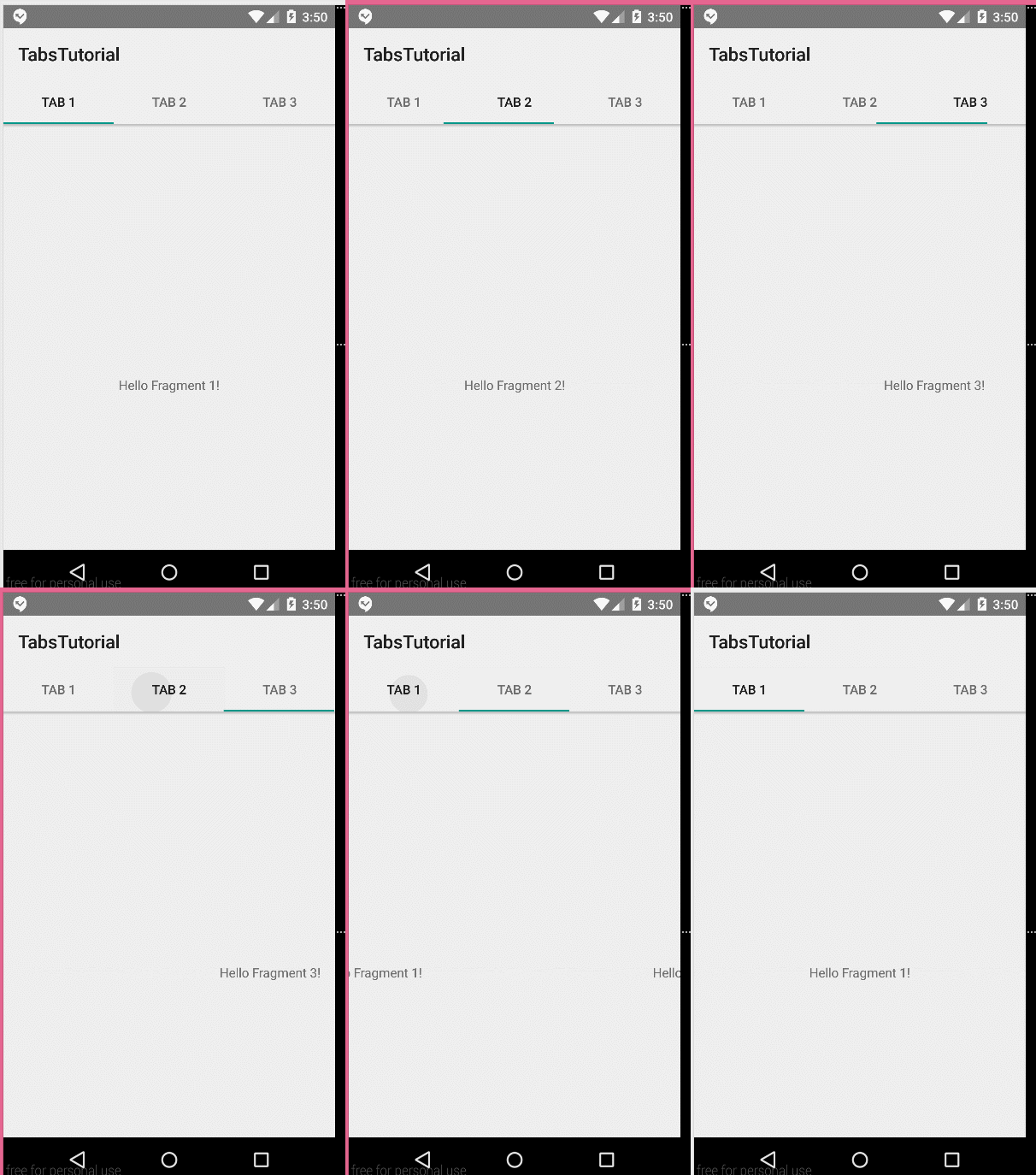
And this is the result of our tutorial:
Now, let’s understand what is with CoordinatorLayout and the other views from activity_main.xml file.
- CoordinatorLayout: about this layout you can learn from this post.
- AppBarLayout: It’s a vertical LinearLayout (former action bar) which implement many features of material design, especially scrolling gestures.
- app:layout_behavior=”@string/appbar_scrolling_view_behavior”: This is used if we want to affect the toolbar, when a view, like RecyclerView, is being scrolled.
- app:tabMode=”scrollable”: This is used in order to make the tabs scrollable. If not set, their width will be wrapped in order to make all the tabs fit the screen.
- app:layout_scrollFlags=”scroll|enterAlways”:
scroll: this flag should be set for all views that want to scroll off the screen – for views that do not use this flag, they’ll remain pinned to the top of the screenenterAlways: this flag ensures that any downward scroll will cause this view to become visible, enabling the ‘quick return’ pattern